 Install MSI with log from shell context menu
When authoring MSI packages, you frequently need the installation to be logged. Instead of repeatedly opening a console to type in msiexec /l* install.log /i foobar.msi, these shell context menu items may speed this process up a little. They do the same as ‘Install’ and ‘Uninstall’ but log everything (/l*) to PackageName.msi-install.log or PackageName.msi-uninstall.log, respectively.
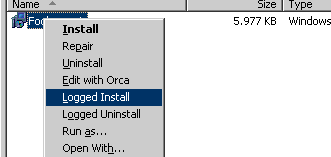
Here are the registry entries:
Windows Registry Editor Version 5.00
[HKEY_CLASSES_ROOT\Msi.Package\shell\LoggedInstall]
@="&Logged Install"
[HKEY_CLASSES_ROOT\Msi.Packageshell\LoggedInstall\command]
@="msiexec.exe /l* \"%1-install.log\" /i \"%1\" %*"
[HKEY_CLASSES_ROOT\Msi.Package\shell\LoggedUninstall]
@="L&ogged Uninstall"
[HKEY_CLASSES_ROOT\Msi.Package\shell\LoggedUninstall\command]
@="msiexec.exe /l* \"%1-uninstall.log\" /x \"%1\" %*"
And in case you have not yet configured ‘Run as’ for MSI files, you may want to add these as well:
[HKEY_CLASSES_ROOT\Msi.Package\shell\runas\command]
@="msiexec.exe /l* \"%1.log\" /i \"%1\" %*"
MSI shell context menu (Save as and rename to .reg)
Any opinions expressed on this blog are Johannes' own. Refer to the respective vendor’s product documentation for authoritative information.
« Back to home